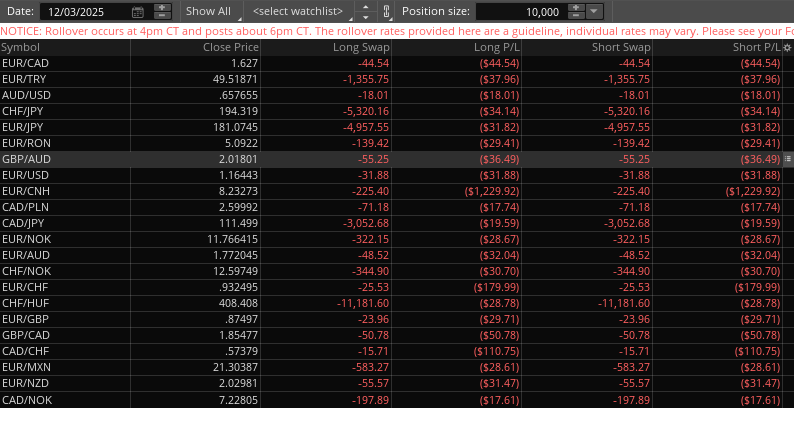
The Financing Rates interface displays the daily rollover values applied to forex symbols held overnight. The page is organized as a date-based table, where financing amounts are updated according to the selected date and the position size you want to evaluate.
In the header, you will find the following controls to navigate and customize the information displayed on the page:
- Date selector. Select a specific day to view the financing rates for. Click the box to open the calendar or use the arrows to move backward or forward one day at a time.
- Show menu. Choose the source of forex pairs displayed in the table. Select Show All to display all supported forex pairs, Positions to view only the pairs you currently hold, or Watchlist to display pairs from a selected watchlist.
- Watchlist selector. Pick a personal or public watchlist from the dropdown. When a watchlist is selected, the table updates to show the forex pairs contained in it.
- Symbol link. Use the color-coded clipboard icon S to link the Financing Rates interface to other components. Choose a color to synchronize symbol selection across components or select Unlink to remove an existing link.
- Position size selector. Enter a custom notional value or choose one from the dropdown list.
- Show actions menu. Open this menu [ to access additional actions, such as exporting the table or detaching the interface into a separate window.
Below the header, the table displays financing information for each forex pair. By default, the following columns are included:
- Symbol. Displays the forex pair.
- Close Price. Shows the closing price for the selected date.
- Long Swap. Indicates the financing rate applied per unit for long positions.
- Long P/L. Shows the projected daily financing amount (in USD) for a long position using the selected position size.
- Short Swap. Indicates the financing rate applied per unit for short positions.
- Short P/L. Shows the projected daily financing amount (in USD) for a short position using the selected position size.
You can interact with the table in the following ways:
- Sort columns. Click a column header.
- Clear sorting. Use the gear icon ¢ at the right corner of the table header and select No sorting.
- Customize columns. Select Customize… from the same gear icon menu ¢ to add or remove columns.
- Resize columns. Drag a column divider.
- Rearrange columns. Drag a column to a new position.
- Scroll. View all listed pairs.